
Monitoring a game server takes two clicks and an address.
Pick the game - the port and the protocol are our problem, not yours.

Why this is not just a port check. A game port is silent by design: it carries the game protocol and answers nothing else, so a monitor pointed at the port from your connect string reports a healthy server as down. Most games answer on a separate query port, and almost all of them speak UDP rather than TCP. Rust is the clearest example - the game is on UDP 28015, but only UDP 28016 replies. Choosing the game here sets both correctly.
Step 1
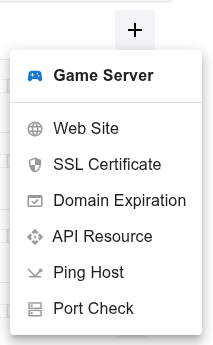
Open the dashboard, click the Add button and choose Game Server - it sits first in the menu, above the technical monitor types.
Step 2
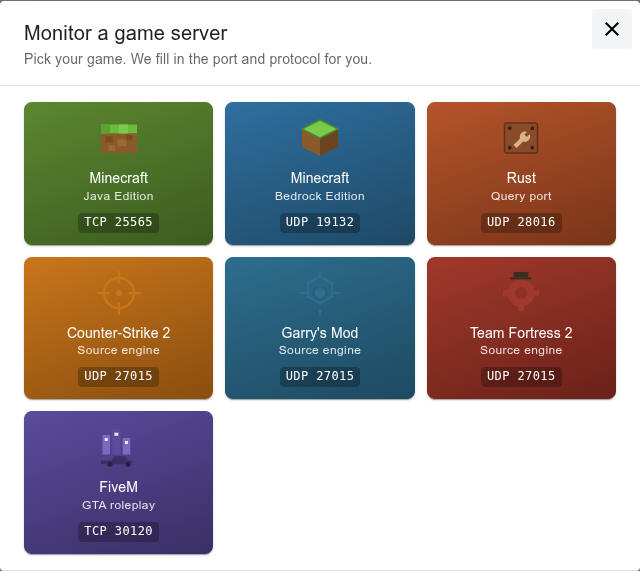
Pick your game. Every tile shows the port and the protocol that will be used, so nothing happens behind your back:
- Minecraft (Java Edition) - TCP 25565
- Minecraft (Bedrock Edition) - UDP 19132
- Rust - UDP 28016, the query port, not the 28015 in your connect string
- Counter-Strike 2, Garry's Mod, Team Fortress 2 - UDP 27015
- FiveM - TCP 30120
Step 3
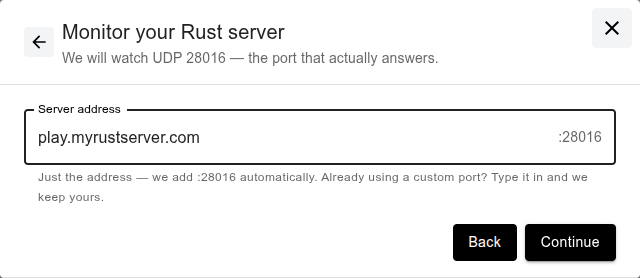
Type the server address without a port - the port for the game you picked is added for you, and it is shown at the end of the field so you can see exactly what will be monitored.
Running on a custom port? Type it in yourself and we keep it. We only fill in a port when you have not given one.
Step 4
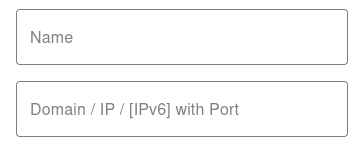
The usual port monitor form opens, already filled in: address, port, protocol and a name like Rust - play.myserver.com. Change the check frequency and the notification channels if you want, then save.
What you get is an ordinary port monitor, so everything else works the same way - uptime history, incidents, public status badges, the API and the AI assistants over MCP.

On UDP, silence means down. UDP has no handshake, so there is nothing to succeed at - the port counts as up only when the server actually replies. That is deliberate: a check that treats silence as success would stay green through a crash, a firewall change and a wrong IP alike.
Not sure the address is right?
Check it first with the free game server checkers - Minecraft, Rust, CS2, Garry's Mod, Team Fortress 2 and FiveM. They show the live player count, the version and the map, and offer to put that exact address under monitoring once the check comes back.
Want to understand which port answers and why, in more depth? See Game Server Ports: Which One Actually Answers a Monitor.